Before and after photo app
Ink puts before and after photos side by side or top and bottom on iPhone and Android: pick two, drag the line, add labels and save free, with no watermark. Both two-photo layouts and two before and after templates are free; Ink Premium adds diagonal, slanted and curved splits.
Side by side suits tall subjects such as a haircut or a person; top and bottom suits wide ones such as a kitchen or a garden.
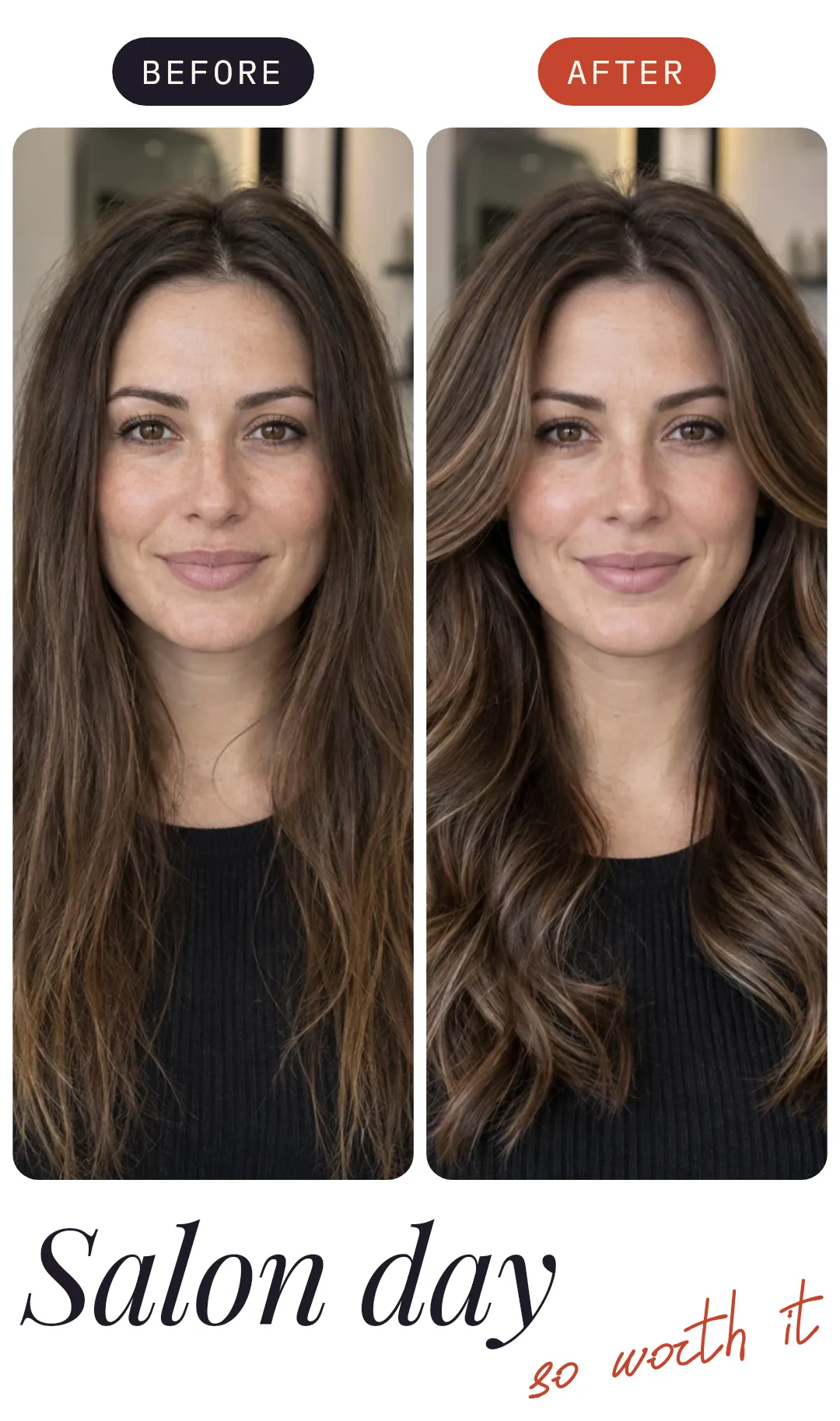
Make a before and after
- Tap Pick photos and choose the two photos.
- In Layouts for 2 photos, tap side by side or top and bottom. If the photos land the wrong way round, tap Rotate photos to swap them.
- Tap ✓. Drag the line to give either photo more room, and pinch each photo until the subject is the same size in both.
- Add the words: tap Text and type Before and After, or start from a template that already has them.
- Tap the download button (Export), then Save image.
Before and after: templates and layouts
Before and after templates
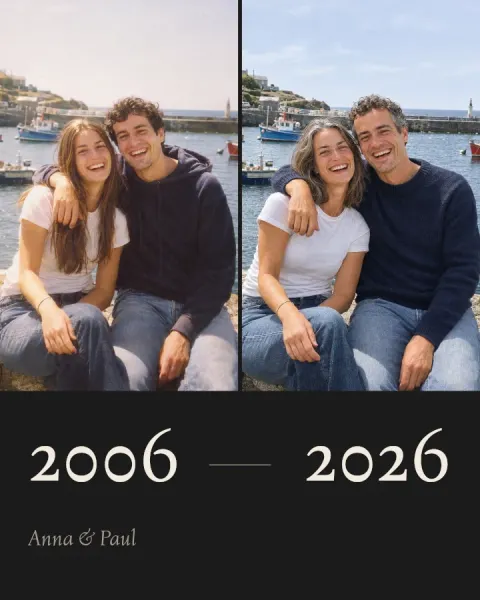
Before and after layouts
-
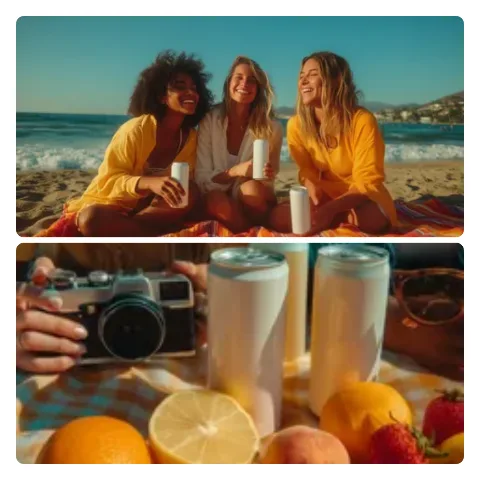 Top and bottom collage with 2 photos
-
 Side-by-side collage with 2 photos
-
 Diagonal collage with 2 photos
-
 Slanted collage with 2 photos
Also a good start

Questions and answers
Can I show three stages: before, during and after?
Yes. Three photos side by side is a free layout; Ink Premium adds a five-photo layout with a wide photo in the middle.
Which side should the before photo go on?
On the left, or on top, so it is read first. If they land the other way, Rotate photos swaps them.
Does a before and after from Ink have a watermark?
No. Saved images never carry a watermark, free or Premium.
Get Ink on your phone
Scan to get Ink on your phone
Point your phone’s camera at the code. It opens the App Store on an iPhone and Google Play on Android.